Skip to content
BrightLeaf Digital
BrightLeaf Digital
  • Plugins
    • GravityOps Bundle
    • Integrate Asana with Gravity Forms
    • Mass Email Notifications for Gravity Forms
    • Recurring Form Submissions
    • Kanban View for GravityView
    • Global Variables
    • Folders4Gravity (free!)
    • GravityOps Search (free!)
  • Snippets
  • Agencies
  • Support
    • Request Support
    • Plugin Documentation
  • Blog
  • Account
    • Freemius Login
  • Contact
BrightLeaf Digital
  • Plugins
    • GravityOps Bundle
    • Integrate Asana with Gravity Forms
    • Mass Email Notifications for Gravity Forms
    • Recurring Form Submissions
    • Kanban View for GravityView
    • Global Variables
    • Folders4Gravity (free!)
    • GravityOps Search (free!)
  • Snippets
  • Agencies
  • Support
    • Request Support
    • Plugin Documentation
  • Blog
  • Account
    • Freemius Login
  • Contact

BL Digital Guidelines & Policies

2
  • Using the Plugin on a Client Site
  • BrightLeaf Digital Refund Policy

Integrate Asana with Gravity Forms

29
  • Getting Started
    • Integrate Asana with Gravity Forms — Welcome & Overview
    • Finding the Plugin in Your Dashboard
  • Setup
    • Connect Asana (OAuth)
    • Create Your First Feed (5-Minute Quickstart)
  • Settings Reference
    • Feed Settings — Name, Conditional Logic & Trigger
    • Asana Task Settings Reference
    • Feed Triggers
    • Mapping Custom Fields
    • Workflow Steps — Create Task
    • Workflow Steps — Update Task
  • How-to Guides
    • Use Conditional Logic to Route Tasks
    • Choosing the Right Feed Trigger
    • Attach File Uploads to Tasks
    • Use Asana Custom Fields as Automation Signals
    • Workflow Steps: Create Task
    • Workflow Steps: Update Task
  • Troubleshooting
    • Basics
    • Reconnecting / Resetting Credentials
    • Task Creation Failed → Backup Task Behavior
    • Items Not Showing in Drop-downs
    • Feed Page Unavailable
    • Task Description Caused Errors
    • Duplicate Tasks
  • Explanations & Concepts
    • OAuth and Scopes
    • Permissions & Workspaces
    • How Feeds Run
    • Performance Considerations
  • Changelog/Roadmap
    • Changelog
    • Roadmap

Mass Email Notifications for Gravity Forms

48
  • Getting Started
    • Mass Email Notifications — Welcome & Overview
    • Finding the Plugin in Your Dashboard
    • Before You Begin: Email Limits & SMTP
    • How Batches Are Created & Sent (5-Minute Delay)
    • Recommended Setup Pattern — Master Control Notification Form
  • Setup
    • Configure Global Send Limits (Throttling)
    • Create Your First Feed (5‑Minute Quickstart)
    • Using a GF Notification as Your Email Template
    • Schedule Batches for a Future Date
  • Settings Reference
    • Workflow Step
    • Global Settings — Limits Reset Rules, Old Batch Cleanup, Cron Toggle & Next Run
    • Unsubscribe Settings (Free Version)
    • Unsubscribe & Preferences Settings (Premium Version)
    • Double Opt-In Settings (Premium Version)
    • Feed Settings — Name, Label, Dedupe, Completion Email
    • Choose Target Form & Email Field
    • Email Settings — From, Reply-To, Subject, Message, Merge Tags
    • Unsubscribe & Preferences Merge Tags Reference
    • Merge Tag Fallbacks & CSV Column Mapping
    • Schedule Based on Date Field
    • Conditional Logic — Feed Form vs. Target Form
    • CSV Ingestion
  • How‑to Guides
    • Send an Update to Everyone Who Used Another Form
    • Create a User Preferences Form (Premium)
    • Set Up a Double Opt-In Workflow (Premium)
    • Using Target-Form Merge Tags
    • Segment Recipients with Target-Form Conditional Logic
    • Import a CSV List and Personalize with Merge Tags
    • Build a Front-End “Trigger” Form for Non-Admin Staff
    • Use Populate Anything for Dynamic, Person-Specific Emails
  • Troubleshooting
    • Basics
    • Batches Not Sending / Cron Not Running
    • Preview Shows 0 Recipients with Target-Form Filters (Premium)
    • Troubleshooting Unsubscribe & Preferences Issues
    • Hitting Rate Limits
    • Emails Going to Spam
    • Entries/Batches Missing After Deletions
  • Explanations & Concepts
    • Understanding Double Opt-In
    • Understanding the Unsubscribe and Preferences System
    • How Batching & Cron Work
    • Throttling Models Explained
    • Deduplication Strategy
    • Batch Statuses & Actions
    • What Gets Logged
    • Limitations & Design Trade‑offs
    • Security & Permissions Considerations
  • Changelog / Roadmap
    • Changelog
    • Roadmap

GravityOps Search

5
  • The Display Attribute
  • Nesting Shortcodes
  • Using Search Operators
  • Multi-Input Field Support
  • General Notes

Kanban View for GravityView

7
  • Getting  Started
    • Kanban View for GravityView
    • How KV4GV Complements GravityView & Gravity Flow
  • Setup & Configuration
    • Quick Start & Setup
    • Board & Card Configuration
  • How‑to Guides / Use Cases
    • Build a Pipeline Board from a Status Field
  • Changelog & Roadmap
    • Changelog
    • Roadmap

Recurring Form Submissions for Gravity Forms

10
  • Getting Started
    • Welcome & Overview
    • Finding the Plugin in Your Dashboard
  • Setup
    • Creating Your First Recurring Feed (Quickstart)
  • Settings Reference
    • Plugin Settings Page
    • Feed Settings
    • Entry Page
    • Notifications, Alerts & Shortcodes
  • Explanations & Concepts
    • Lifecycle, Scheduling, Deletion & Edge Cases
  • Changelog/Roadmap
    • Roadmap
    • Changelog

Global Variables

7
  • Getting Started
  • Creating and Using Variables
  • Nesting Variables
  • Using Variables in Conditional Logic
  • Developer Notes
  • Roadmap
  • Changelog
View Categories
  • Home
  • GravityOps Documentation
  • Integrate Asana with Gravity Forms
  • Setup
  • Connect Asana (OAuth)

Connect Asana (OAuth)

Introduction
This guide will walk you step-by-step through connecting your Asana account to IAWGF using OAuth 2.0. Once authorized, you’ll be able to configure feeds and send tasks directly to Asana.

Tip: You’ll also get step-by-step guidance inside the plugin as you go—the interface walks you through each part of the connection.


Step 1: Create an Asana App #

  1. Go to your Asana My Apps page.
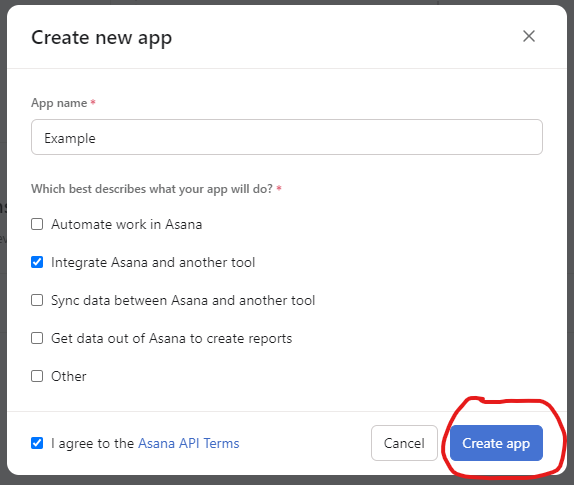
  2. Click Create new app, name it (e.g., “Gravity Forms Integration”), and select Integrate Asana and another tool.
  3. Accept the Asana API Terms, then click Create app.
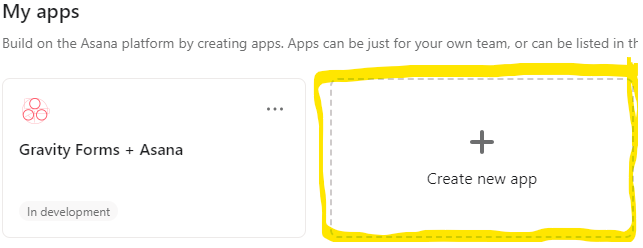
picture of the create app screen
Creating the asana app

Step 2: Enter App Credentials in the Plugin #

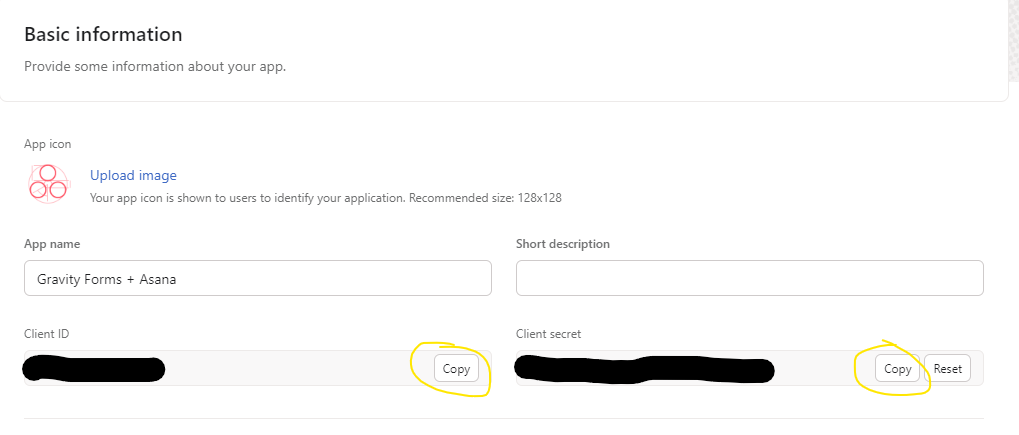
  1. In your Asana app’s settings, go to the Basic information tab.
  2. Copy the Client ID and Client Secret.
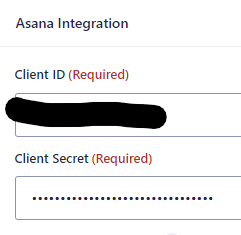
  3. In WordPress, navigate to GravityOps → Asana Integration → Settings (or Forms → Settings → Asana Integration).
  4. Paste the Client ID and Client Secret into the respective fields.
  5. Click Save.
screenshot of the basic info page inside the asana app
screenshot of the client id and secret pasted into the plugin settings

Step 3: Configure OAuth in Asana #

  1. In your Asana app’s settings, open the OAuth tab.
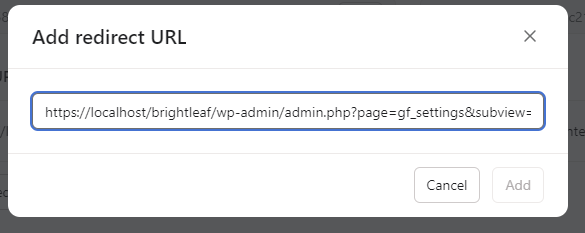
  2. Add the plugin’s Redirect URL (from the plugin settings) under Authorized Redirect URIs—omit the &step=3 suffix if present.
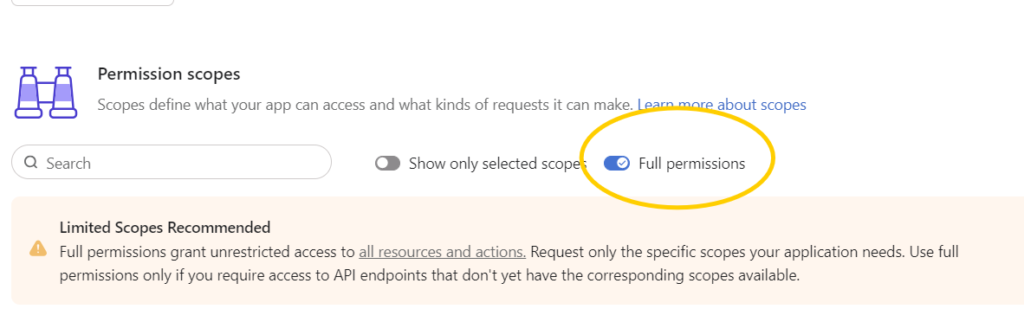
  3. When asked, choose Full permissions for now. Note: Asana is moving to a scoped permissions model where you will need to select specific scopes for both new and existing integrations. See more details here.
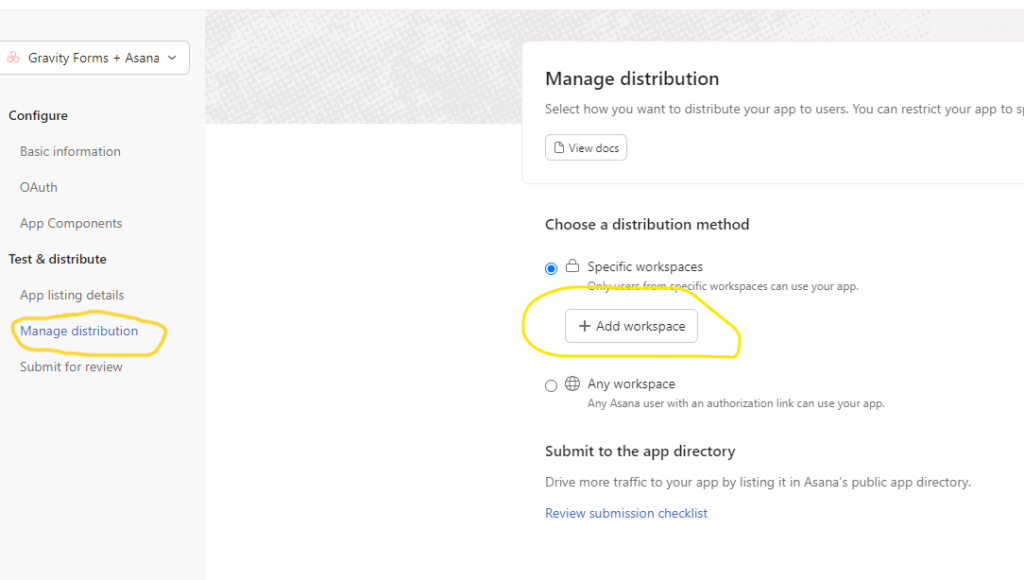
  4. Under the Manage distribution tab, add the workspace(s) you want the plugin to have access to.
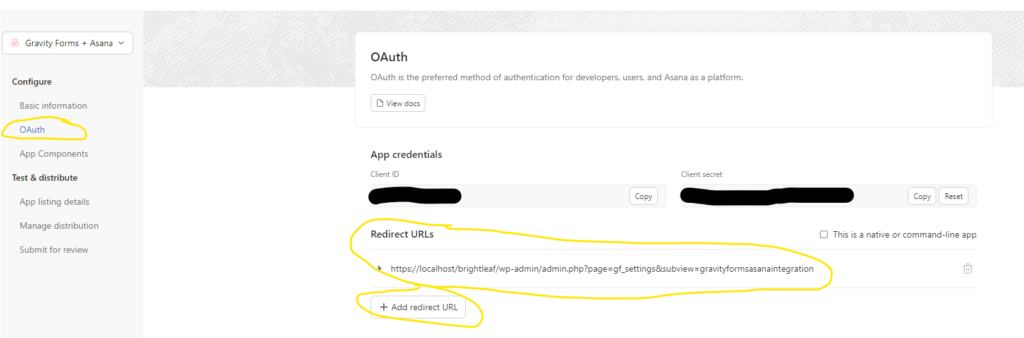
screenshot of configuring the redirect url
screenshot of adding the redirect url
screenshot of configuring permissions
configuring workspaces for the asana app

Step 4: Authorize the Plugin #

  1. In WordPress, go to Step 4 of the plugin settings.
  2. Click Authorize—you’ll be redirected to Asana’s authorization screen.
  3. Log in if prompted, and approve access. Remember to log in as a user with necessary permissions.
  4. Upon success, the plugin will display a confirmation message and greet you.
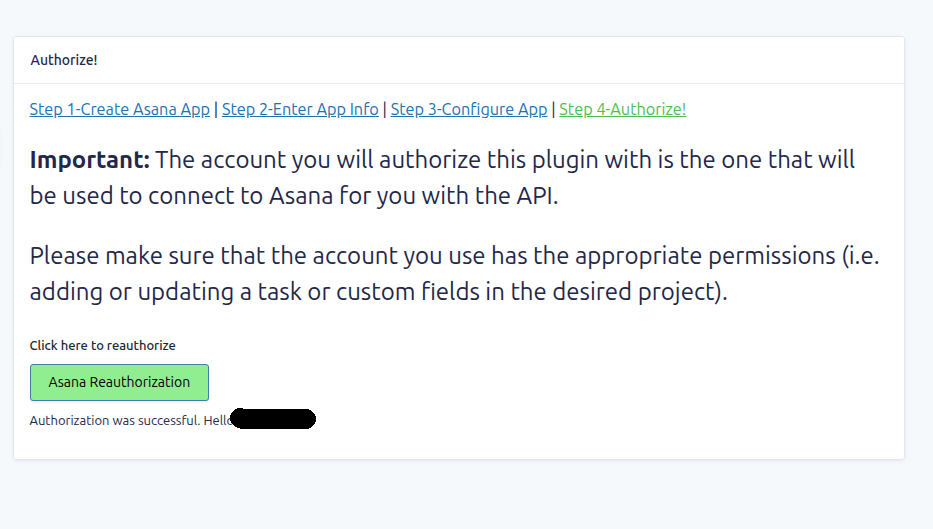
For a deeper dive into how OAuth works, including the authorization code flow, token exchange, and specific scopes used by the plugin, see the “Explanations & Concepts” section.

Updated on August 27, 2025

What are your Feelings

  • Happy
  • Normal
  • Sad

Share This Article :

  • Facebook
  • X
  • LinkedIn
  • Pinterest
Create Your First Feed (5-Minute Quickstart)
Table of Contents
  • Step 1: Create an Asana App
  • Step 2: Enter App Credentials in the Plugin
  • Step 3: Configure OAuth in Asana
  • Step 4: Authorize the Plugin
  • GravityOps Plugin Bundle
  • Integrate Asana with Gravity Forms
  • Mass Email Notifications
  • Global Variables
  • Recurring Form Submissions
  • Folders4Gravity (free!)
  • GravityOps Search (free!)
  • Code Snippet Library

Unlock weekly tools and insights that help you run your business on WordPress - faster and smarter.

This field is hidden when viewing the form
Name
This field is hidden when viewing the form
You've already subscribed with that email address!
  • Request Support
  • Consult Our Documentation
  • Read Our Blog
  • Join Our Agency Program
  • Become An Affiliate
  • View Your Account Info
  • Contact BrightLeaf Digital
© 2025 BrightLeaf Digital
  • Plugins
    • GravityOps Bundle
    • Integrate Asana with Gravity Forms
    • Mass Email Notifications for Gravity Forms
    • Recurring Form Submissions
    • Kanban View for GravityView
    • Global Variables
    • Folders4Gravity (free!)
    • GravityOps Search (free!)
  • Snippets
  • Agencies
  • Support
    • Request Support
    • Plugin Documentation
  • Blog
  • Account
    • Freemius Login
  • Contact