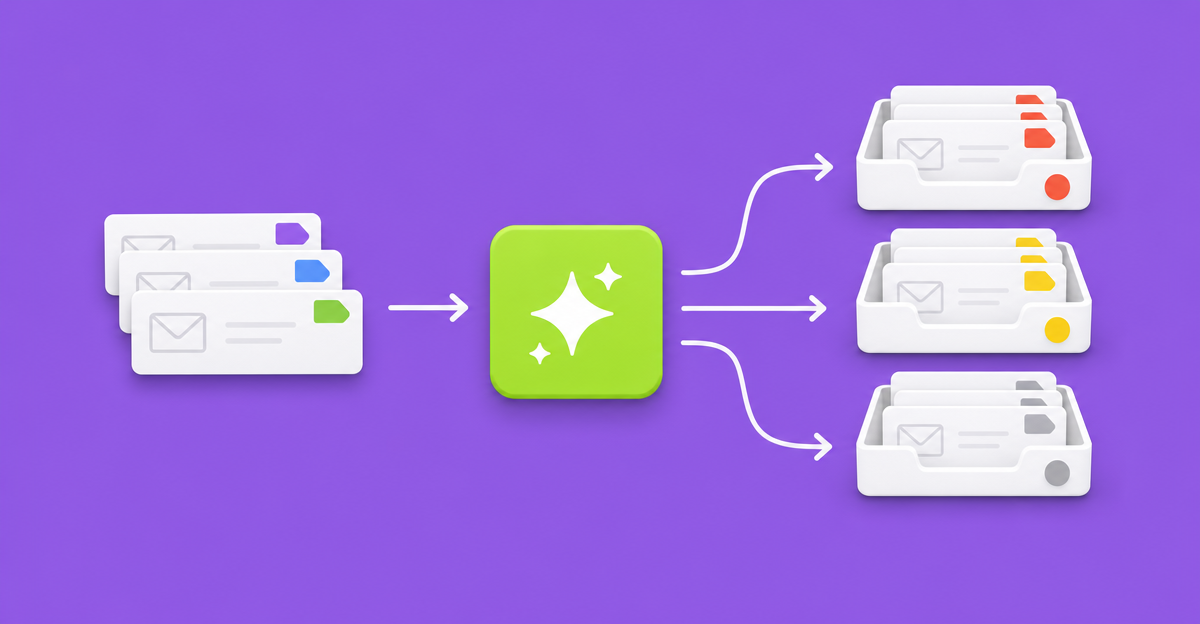
A support form that sorts itself. When a ticket comes in, one AI Feed call reads it and writes four things back onto the entry: a category, a priority, a one-line summary and a draft reply. Your notifications route on the first two. The agent gets the other two. Nobody reads a ticket just to decide who should read it.
This is the build we described in AI belongs in the feed, not the form builder, written out step by step. It takes about half an hour if Gravity Forms and GravityOps AI Feed are already installed. The form export is at the bottom.
What you need
- Gravity Forms.
- GravityOps AI Feed. Pro covers this recipe, because the outputs land in Hidden and Paragraph fields. Premium adds typed destinations like Select and Radio, Gravity Flow steps and per-form token budgets.
- An Anthropic API key, saved under GravityOps → AI Feed → Credentials. Test the connection there before you build anything else.
- Optional: Gravity Flow, if you’d rather route through a workflow than through notifications.
Step 1: the form
Five fields the customer sees, four they don’t.
- Name (1), Email (2), Site URL (3, optional), Subject (4), Message (5). The usual support form.
- AI Category (6) and AI Priority (7): Hidden fields. They hold short, machine-readable values that your conditional logic will test.
- AI Summary (8) and AI Draft Reply (9): Paragraph fields with visibility set to Administrative, so they appear on the entry and in notifications but never on the front end.
Import the JSON at the end of this post under Forms → Import/Export → Import Forms and you have all nine.
Step 2: the feed
Open the form, go to Settings → AI Text, and add a feed.
- Name: Ticket triage.
- API Key: Automatic.
- Model: Claude Haiku 5.5. Triage is a short, structured job and the smaller model handles it at a fraction of the cost. Claude Sonnet 5.5 is the recommended default if you’d rather run one model for everything.
- Trigger Mode: After Form Submission.
- Execution Mode: Async. The customer sees the confirmation straight away and the call runs in the background.
- Output Mode: JSON multi-field mapping.
- Existing Values: Fill only empty targets (the default).
- Max Tokens: leave it blank (4,096). This feed returns a few hundred.
- Conditional Logic: run only if Message is not empty.
The output map
Each row names a JSON property the model must return, the field that receives it, and an instruction for that one value.
| Response name | Destination field | Output instructions |
|---|---|---|
category | AI Category | Exactly one of: billing, bug, how-to, account, other. Lowercase, nothing else. |
priority | AI Priority | Exactly one of: urgent, normal, low. Urgent only if the customer can’t use the product at all, or is being charged incorrectly. |
summary | AI Summary | One sentence, under 30 words, using only facts stated in the message. |
draft_reply | AI Draft Reply | A first reply an agent can edit and send. Plain text, under 120 words. Never promise refunds, dates or fixes. |
A Hidden field accepts whatever the model sends back, so the instruction has to carry the constraint. On Premium you can map category to a Select or Radio field instead, and the plugin’s typed validation rejects anything that isn’t one of the choices.
The prompts
System prompt:
You triage support requests for a WordPress plugin company.
Use only facts stated in the request. If something is unclear, say so in the summary instead of guessing.
Classify by what the customer needs, not by the words they used: "it's broken" about an invoice is billing, not bug.
Write the draft reply as a helpful human agent would: plain language, a one-line greeting at most, no sign-off.
User prompt:
Subject: {Subject:4}
Site: {Site URL:3}
Message:
{Message:5}
Keep personal data out of the prompts unless the model needs it. This feed never sees the customer’s name or email address, and it doesn’t need to.
Step 3: route on the result
One thing trips people up here. With Async execution, Gravity Forms sends its “Form is submitted” notifications before the AI fields are filled, so routing notifications can’t listen to that event. AI Feed emits its own events when a text feed finishes (“AI text feed completed”, goaif_text_feed_completed) or fails (“AI text feed failed”, goaif_text_feed_failed). Point the routing notifications at the completion event.
- Urgent billing → finance: AI Category is billing and AI Priority is urgent.
- Urgent anything else → on call: AI Priority is urgent and AI Category is not billing.
- Everything else → the support inbox: AI Priority is not urgent.
- Failure → the support inbox: on the failure event, subject “Triage failed: {Subject:4}”. A failed call should never lose a ticket.
Put {AI Summary:8} in the subject line and {AI Draft Reply:9} in the body. The agent reads one line to know what they’re opening and starts from a draft instead of a blank reply.
Don’t send the draft to the customer automatically. The point is a faster human, not an unattended one.
Going further
- Bugs into Asana. Add an Asana feed with conditional logic “AI Category is bug” and every bug report becomes a task in the dev project, with the summary as its title.
- A workflow instead of notifications. With Gravity Flow, assign a user-input step by category and show AI Summary and AI Draft Reply to the assignee. If you route to more than two queues, Multi Path Step gives one decision step up to 20 outcomes instead of a chain of approvals.
- Two models. Split the work into two feeds: Haiku writes category, priority and summary; Sonnet writes the draft reply. The cheap model triages, the strong model writes, and each feed’s cost shows up separately in the usage ledger.
What it costs
Cost depends on the model and on how long your tickets are. A typical ticket plus these prompts is a few hundred input tokens, and the four outputs are a few hundred more. Work it out rather than take our word for it:
(input tokens × input price + output tokens × output price) × tickets per monthRun the feed on ten real tickets, read the token counts in the usage ledger, and use Anthropic’s current price for the model you picked. Then set two guards: a monthly token budget on the form or feed (Premium), and a spending limit in the Anthropic console. The provider’s limit is the one that can’t be bypassed. Admin reruns are new calls and bill again.
Where this goes wrong
- Some tickets will be misfiled. Read a week of categories before you trust the routing, and tune the output instructions with real examples of what it got wrong.
- “Urgent” drifts. If every third ticket comes back urgent, tighten the definition in that row’s instruction rather than adding rules to the system prompt.
- People paste passwords into support forms. Tell your client exactly what the feed sends to Anthropic, and add a line to the form asking people not to include logins or card numbers.
- API calls fail. Expired keys, outages and budget limits are normal events. The failure notification is not optional.
Form export
Save this as triage-form.json and import it under Forms → Import/Export → Import Forms. It includes the nine fields and a confirmation message. Set up the feed and the notifications as described above.
{
  "0": {
    "title": "Support request (AI triage)",
    "description": "",
    "labelPlacement": "top_label",
    "descriptionPlacement": "below",
    "button": { "type": "text", "text": "Send request", "imageUrl": "" },
    "fields": [
      { "type": "text", "id": 1, "label": "Name", "isRequired": true, "size": "large", "visibility": "visible" },
      { "type": "email", "id": 2, "label": "Email", "isRequired": true, "size": "large", "visibility": "visible" },
      { "type": "website", "id": 3, "label": "Site URL", "isRequired": false, "size": "large", "visibility": "visible", "description": "The site this is about, if any." },
      { "type": "text", "id": 4, "label": "Subject", "isRequired": true, "size": "large", "visibility": "visible" },
      { "type": "textarea", "id": 5, "label": "Message", "isRequired": true, "size": "large", "visibility": "visible" },
      { "type": "hidden", "id": 6, "label": "AI Category" },
      { "type": "hidden", "id": 7, "label": "AI Priority" },
      { "type": "textarea", "id": 8, "label": "AI Summary", "isRequired": false, "size": "small", "visibility": "administrative" },
      { "type": "textarea", "id": 9, "label": "AI Draft Reply", "isRequired": false, "size": "medium", "visibility": "administrative" }
    ],
    "confirmations": {
      "6a1f00000000a": {
        "id": "6a1f00000000a",
        "name": "Default Confirmation",
        "isDefault": true,
        "type": "message",
        "message": "Thanks. We have your request and will reply by email.",
        "url": "",
        "pageId": "",
        "queryString": ""
      }
    },
    "notifications": {}
  },
  "version": "2.9.0"
}
GravityOps AI Feed has a 14-day free trial with no card, and a 30-day money-back guarantee. GravityOps Weekly subscribers get Black Friday pricing on November 19, four days before everyone else.
Discuss this post
Questions, corrections or your own approach? Reply in the community thread.