
Gravity Forms is one of those WordPress tools that does its job quietly. You build a form, publish it, and submissions start coming in. For many businesses, that is where the story begins. A contact form brings in leads, and a registration form collects sign-ups. An application form gathers details from candidates. Everything gets stored as entries in WordPress.
At first, the Gravity Forms entry list feels fine. You log in, click “Entries,” and review what came in.
Then reality hits.
Submissions pile up. Staff members need access. Managers want lists. Clients ask for updates. Someone needs to find one entry from three months ago. Another person needs to see only approved submissions. Suddenly, the problem is no longer collecting information. The problem is using the information in a way that fits daily work.
Most organizations do not want to treat their form entries like buried records. They want them to behave like content. A directory, a searchable list. They want something that looks like a clean internal page, not a WordPress admin screen.
That is where GravityView fits.
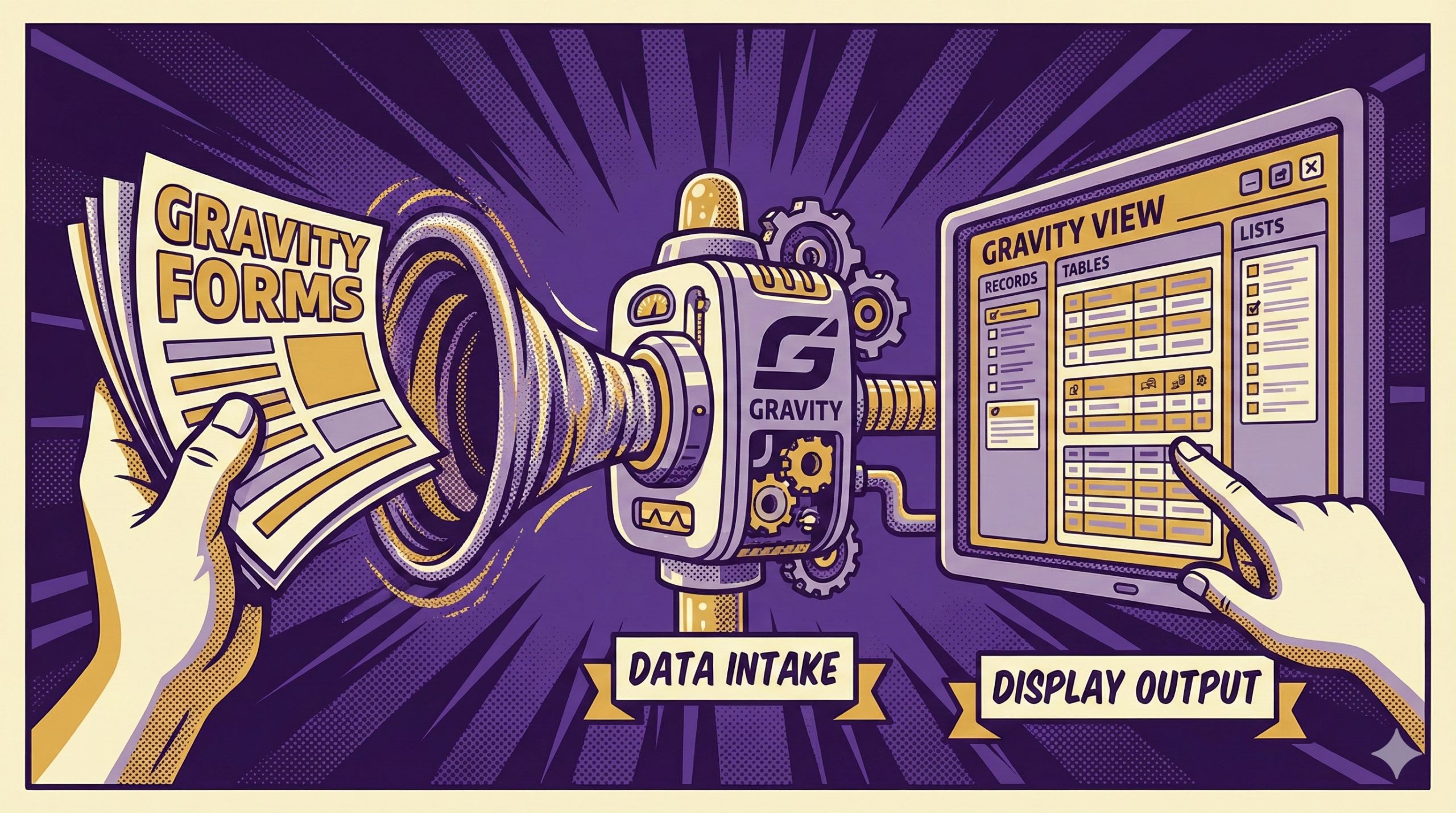
Gravity Forms captures the information. GravityView helps present that information in a way people can actually work with. When the volume grows, that difference matters.
GravityView Turns Gravity Forms Entries Into Usable Pages
Gravity Forms stores submissions inside WordPress. That is expected. Entries belong in the system that collected them.
The limitation is how those entries are normally viewed. The WordPress dashboard works well for administrators. It is not a great workspace for staff members who just need to review records.
GravityView takes those same entries and allows them to be displayed on the front end of the site. Instead of treating entries like hidden data, they become structured pages.
That shift is practical because people do not want to “manage entries.” People want to browse information.
GravityView supports several ways to display submissions, including:
- Lists that show multiple entries at once
- Tables that behave like organized records
- Profile-style layouts for single-entry pages
- Directory-style views where each entry looks like a listing
These layouts matter because they match real use cases.
A membership organization might want a member directory. Schools might want a list of registrations. A nonprofit might want a page where staff can review requests. Businesses might want a public-facing directory of approved vendors.
In all of those cases, the data is already stored inside Gravity Forms. The problem is that the default entry view is not built to serve as a polished directory or workspace page.
Once entries are displayed as structured pages, a few things change immediately:
- Reviewing submissions feels less like digging through a database.
- Staff members can scan information faster.
- Sharing a link to a view becomes possible.
- Work stays connected to the original entry instead of being copied elsewhere.
A lot of organizations solve this problem by exporting entries into spreadsheets. That works temporarily. Then the spreadsheet becomes the new workspace, and the Gravity Forms entry list becomes the archive.
That creates two versions of the same record.
Edits happen in the spreadsheet. Notes are added in email. Someone updates the entry in WordPress. Another person keeps using the old export. Eventually nobody knows which version is current.
A front-end view avoids that drift because the list stays connected to the stored entry. The entry remains the source record. The view becomes the workspace.
That is one of the simplest ways GravityView makes Gravity Forms more useful.
GravityView Makes Entries Easier to Search, Filter, and Sort
The next challenge shows up as soon as submissions increase.
Ten entries are manageable. Two hundred entries require structure. A thousand entries require a system.
At scale, the question is not whether entries exist. The question is whether someone can locate the right one quickly.
The Gravity Forms admin view includes search tools, but many businesses still struggle because the dashboard is not designed for staff workflow. Most teams want a clean interface where finding records feels natural.
GravityView improves this by giving entry views tools that support day-to-day review.
Search is one of the biggest improvements. A staff member should be able to locate an entry without scrolling through pages of submissions. Typing a name, email, or ID should be enough.
Filtering matters even more.
Most organizations need to separate entries into groups. Those groups might be based on status, category, location, or submission type. Without filtering, staff end up reviewing entries one by one.
A view that filters entries can support workflows like:
- Showing only approved applications
- Displaying only submissions from a certain city
- Separating requests by service type
- Listing only entries submitted this month
- Isolating entries marked urgent
Sorting completes the picture. People review lists differently depending on the task.
Sorting by date is useful when reviewing recent submissions. Doing so alphabetically helps when scanning a directory. Sorting by category helps when organizing review sessions.
Once search, filter, and sort exist in the same view, entries start behaving like a real working list.
That matters because teams stop exporting.
Exporting is a common symptom of frustration. People export entries because the system feels slow to work with. They want to filter quickly, highlight items, and to send a list to a manager.
Then the export becomes permanent.
That is where operations start to break down.
A spreadsheet does not update itself when new entries come in. It does not reflect edits made later. A spreadsheet does not show the same view to every staff member at the same time.
GravityView helps keep entry management inside WordPress by making the entry list feel usable. The form remains the intake tool. The view becomes the working interface.
GravityView Helps Businesses Share Entry Data With the Right People
A third challenge appears once more than one person needs access.
Many businesses use Gravity Forms as a shared intake system. Multiple staff members need to review submissions. Some people only need to see certain entries. Others should never touch WordPress settings.
Handing out WordPress admin accounts is a messy solution. Even when permissions are limited, the dashboard still exposes menus that confuse users. Staff members click the wrong thing. They ask questions. They worry about breaking something.
The problem is not trust. The problem is that WordPress admin access is a blunt tool.
GravityView supports sharing entry data through front-end pages instead. That means a person can log in and view entries without working inside the dashboard.
This is especially useful for organizations that need role-based access.
Examples show up quickly:
- Teachers reviewing student submissions
- Coordinators reviewing volunteer applications
- Department managers reviewing internal requests
- Members checking their own submitted information
In those cases, access is needed, but admin access is unnecessary.
A front-end view solves that mismatch.
Instead of emailing spreadsheets, organizations can create a page where entries are visible in a controlled format. Staff can reference the same list. Instead of copying entry details into internal documents, the record can be viewed where it lives.
This approach also reduces mistakes. When data is shared through exports, it is easy for the wrong version to circulate. Someone sends last month’s list. Forwards an outdated spreadsheet. Someone edits a copy instead of the source.
Keeping access tied to the live entry reduces those errors.
The entry stays in Gravity Forms. The view stays in GravityView. Staff work from the same dataset, even when multiple roles are involved.
That is a meaningful improvement for any organization that treats form submissions as ongoing records.
Conclusion
GravityView improves Gravity Forms by addressing what happens after submission. Entries can be displayed as usable pages. Lists become searchable and sortable. Filtering becomes part of the workflow. Access can be shared without handing out WordPress dashboard permissions. Data stays connected to the original entry instead of being duplicated across spreadsheets and email threads.
None of this changes how Gravity Forms collects information. The improvement comes from making the stored entries easier to work with.
Want to learn more about Gravity Forms? Reach out to BrightLeaf Digital today!
Check out our Snippets Library for useful additions to your Gravity Forms workflow.