
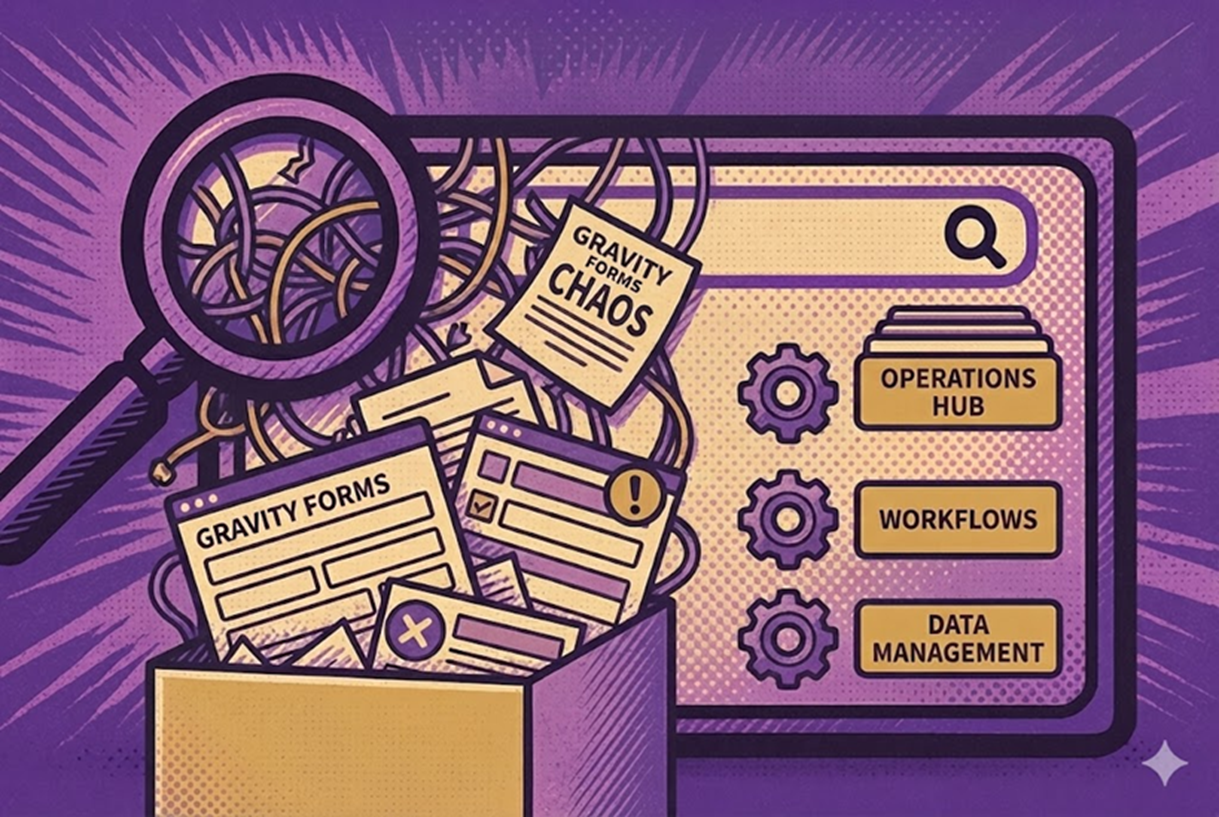
If you use Gravity Forms long enough, the admin screen stops feeling like a simple form list and starts feeling like a maze.
New forms get added for every campaign. Old ones stick around “just in case.” Test forms. Duplicates. Slight variations of the same process. Views and feeds scattered everywhere.
At some point, scrolling that list becomes its own job.
This isn’t just an annoyance. It’s a sign that your WordPress Gravity Forms setup is behaving like a junk drawer instead of the front door to your operations system.
The Junk Drawer Problem: When Your Form List Stops Making Sense
Most teams start with one or two simple forms. Over time, that turns into dozens:
- Different lead capture forms
- Multiple onboarding flows
- Internal request and approval forms
- Program or event registrations
- Feedback, surveys, renewals, and more
Each one made sense in the moment. Together, they’re chaos.
You see things like:
- “Contact Form – Old”
- “Contact Form – Copy”
- “Onboarding Form (Final)”
- “Onboarding Form – NEW”
- “Application v3 (TEST)”
No one is completely sure which one is live, which one is safe to delete, or which one is powering a critical process.
The same thing happens with views and feeds. You know a process exists somewhere, but not where it “lives.”
Why This Chaos Actually Costs You Real Money
A messy gravity forms workflow doesn’t just look unprofessional. It quietly eats time and increases risk.
Typical failure modes:
- Slow handover – Every time someone new touches the site, they spend hours figuring out which forms are active, which views are used, and what connects to what.
- High error risk – A form gets edited because its name “sounds right,” but it’s not the one in production. A legacy form stays live and keeps receiving entries no one is watching.
- Fragmented ownership – Only one or two people have the mental map. Everyone else asks, “Which form should I change for this?” and waits for an answer.
- Blocked improvement – You want better gravity forms automation or dashboards, but you can’t confidently layer anything on top of a structure you don’t fully understand.
The result: Gravity Forms is doing more and more of the work, while the admin interface becomes the bottleneck.
How SaaS Fragmentation Makes This Even Worse
Most organizations also sit on a patchwork of SaaS tools:
- One platform for CRM
- Another for support tickets
- Another for email marketing
- Another for internal requests
Each system has its own UI, its own assumptions, and its own way of hiding complexity.
When your WordPress Gravity Forms setup is chaotic on top of that, you get the worst of both worlds:
- You’re still paying for fragmented SaaS tools.
- You can’t reliably use WordPress as the consolidated replacement because the Gravity Forms plugin environment isn’t structured enough to carry that load.
If you want to reduce SaaS dependence and consolidate operations into WordPress, the internal architecture around Gravity Forms has to be treated like a real system, not “just forms in the backend.”
Treat Gravity Forms as Operations Architecture
The turning point is when you stop asking what is gravity forms in the narrow sense (“a Gravity Forms plugin for collecting submissions”) and start seeing it as the front end of your internal systems.
In practice:
- Every form is an entry point into a process – A lead, an application, a support ticket, an internal request, a renewal, a report.
- Every view, feed, notification, and integration sits along that process – Who sees what, when they see it, and what happens next.
When you treat your WordPress Gravity Forms setup as a list of forms, you get clutter.
When you treat it as operations architecture, you get structure:
- Areas of the business (Leads, Onboarding, Delivery, Finance, Internal)
- Within each area, forms and views that clearly belong to a process
- A visible map instead of a long, flat table
WordPress plus Gravity Forms plus the wider ecosystem is capable of functioning as a genuine operations hub. But only if the way you organize it reflects how your business actually runs.
What an Operations-Ready Gravity Forms Setup Looks Like
An “operations-ready” setup doesn’t magically appear. It’s designed.
At a high level, it tends to look like this:
- You define a handful of clear areas, such as:
- Leads & Marketing
- Client / Student / Donor Onboarding
- Service / Program Delivery
- Billing & Finance
- Internal Requests & Admin
- Inside each area, you have:
- Forms with names that clearly express their role in the process
- Views tied to specific tasks or audiences (internal dashboards, status lists, summaries)
- Feeds and integrations that obviously belong to that process
The key is that someone who understands the organization can look at the gravity forms directory (forms and views together) and say:
“I can see exactly where this process starts, where it moves, and where it ends.”
No archaeology. No guessing. No “don’t touch that, I’m not sure what it does.”
The Tools Layer: Platform, Ecosystem, and the Admin Control Surface
To get there, you don’t need to change the fundamentals. You need to change how you design around them.
Think in three layers:
- Platform – Gravity Forms is your intake and data layer. Submissions enter here.
- Ecosystem – Tools like views, workflow add-ons, notifications, integrations, and reporting solutions extend what happens after submission.
- Admin control surface – This is where most setups fall apart. The admin doesn’t reflect how your operations are organized.
You can:
- Try to control everything with naming alone and a separate documentation map, or
- Add a simple control layer that lets you group forms and views by area or process so your admin visually matches your operations structure.
A free foldering tool like Folders4Gravity exists specifically for this control layer: it lets you create folders inside the Gravity Forms admin and move forms and views into those folders so the interface reflects your architecture, not just your history.
It doesn’t add any new processing or front-end behavior for your entries; it only changes how you organize and access forms and Views in the admin. It’s a workspace layer, not an automation engine.
A Practical First Pass: Turning Chaos Into a Coherent Operations Hub
You don’t need a full rebuild. You need one deliberate pass that moves you from “junk drawer” toward “designed architecture.”
Here’s a practical approach.
1. Audit What You Have Now
- Export or list all forms and key views.
- Mark each as:
- Active and critical
- Active but low impact
- Legacy / should be retired
- Test / temporary
Don’t change anything yet. Just see the landscape.
Potential link: internal checklist for auditing Gravity Forms and GravityView setups.
2. Define Your Top-Level Structure
Decide what top-level “buckets” actually make sense for your organization. For most teams, 4–6 is enough. For example:
- Leads & Marketing
- Onboarding / Intake
- Service / Program Delivery
- Billing & Finance
- Internal Requests / Admin
You’re not trying to be perfect. You’re trying to give your gravity forms workflow a clear spine.
3. Map Forms and Views to Those Areas
For each form:
- What process is this actually part of?
- Which top-level area does that process belong to?
- Is there a related view or integration that should live alongside it conceptually?
Forms that don’t have a clear answer become candidates for cleanup or consolidation later.
4. Standardize Naming Where It Matters Most
Pick a simple naming pattern and apply it to your most important forms and views. You don’t have to rename everything in one day. Focus on the 10–20 assets that drive most of your activity.
5. Mirror the Structure in the Admin
At this point, you have two options:
- Option A: Naming + documentation only
Maintain a written map (in your SOPs or internal wiki) that explains which forms belong to which area, and rely on consistent names to keep the list usable. - Option B: Visual structure in the admin
Use a foldering layer such as Folders4Gravity to:- Create folders that match your top-level areas
- Move your key forms and views into those folders
- Make the Gravity Forms admin look like your operations map, not a flat table
The goal is simple: someone who understands the business but not the history of the site should be able to navigate the forms and views intuitively.
Potential link: implementation guide on mirroring operations structure using a foldering tool.
6. Align Your Team Around the New Map
A structure no one uses is just decoration.
- Document, in plain language, where to go for each process:
- “If you’re working on new enquiries, start in the Leads & Marketing group.”
- “If you’re handling internal requests, start in the Internal Requests group.”
- Update at least one internal SOP or onboarding guide to reference the new structure.
The aim is that “where do I find the form for X?” stops being a recurring question.
What This Unlocks Once the Structure Exists
A clean wp gravity forms architecture doesn’t just feel nice. It makes higher-level improvements realistic.
When the structure is clear, it becomes much easier to:
- Add targeted gravity forms automation – Conditional notifications, staged approvals, escalations, and reminders applied to well-defined processes instead of mystery forms.
- Build useful dashboards and views – Status boards, internal lists, and summaries that align with the same areas you’ve defined in your architecture.
- Reuse patterns safely – You can clone a proven process, rename it according to your standard, and place it in the right area without worrying about collisions.
- Share ownership – Multiple people can work inside the system without fear of “breaking something somewhere else,” because the map is intelligible.
None of this is magic. It’s what happens when you treat your form ecosystem as operations architecture instead of an ever-growing list.
A Low-Risk First Step Into the GravityOps Mindset
You don’t need to fix everything at once. You just need one clear move.
Step 1: Restructure One Area
Pick a single area that matters right now:
- New enquiries
- Onboarding
- Internal requests
- Renewals
Then:
- Audit the forms and views tied to that area
- Decide what the structure should be
- Clean up the naming where it’s most confusing
- Mirror that structure in the admin (with or without a folder layer like Folders4Gravity)
The goal is to prove to yourself that your gravity forms directory can behave like the front end of a system, not like a log of everything you’ve ever done.
Step 2: Explore Small, Targeted Improvements
Once that one area feels coherent, you’re ready for small, meaningful upgrades.
You can then expand the same approach to other areas until the entire WordPress Gravity Forms setup feels like what it actually is: the operational backbone of your site, not a table you dread scrolling through.
For more information on optimizing your Gravity Forms operations, contact BrightLeaf Digital today!

