//

BrightLeaf

The Most Flexible Way to Display Gravity Forms Entry Data

Gravity Forms is a fantastic tool for collecting form submissions—but what if you need to display Gravity Forms entries on the frontend for clients, staff, or public users? That’s where GFSearch comes in.

GravityOps Search – Search and Display Gravity Forms Entries
Version 1.0.1 Requires WP 6.5 Requires PHP 8.0 135+ downloads Last updated November 26, 2025

Search Gravity Forms entries on the front end and display matching results anywhere. Filter by any field value. Output custom formatted data.

GravityOps Search is a free, powerful shortcode for searching Gravity Forms entries on the front end and displaying the matching results anywhere on your site. Instead of paging through the admin entries screen, you can drop a single shortcode into a page, post, GravityView, or custom template and surface exactly the data you need. It works like an Excel-style lookup for Gravity Forms entries: you define which forms and fields to search, how to compare the values, and what to output for each match.

The core [gravops_search] shortcode lets you target one form, several forms, or even all forms at once. You can filter by one field or many, pass in values directly in the shortcode content, and control whether entries must match all conditions or any of them. The same shortcode can handle simple lookups (showing a single field from the latest matching entry) or more complex reporting-style views that combine fields, entry properties, and custom HTML. Because everything is driven by attributes, you stay in full control of which entries are included and how their data appears on the front end.

Results are rendered through a flexible display attribute, which understands both simple comma-separated field lists and advanced custom display strings with placeholders. You can output raw values, mix multiple fields into labeled text, or construct HTML lists, tables, and cards with links, CSS classes, and nested shortcodes. This gives you a fully custom front-end listing of Gravity Forms entries that you can drop into any layout, theme, or builder, without building a custom query or touching PHP.

GravityOps Search fully supports Gravity Forms entry properties (such as entry ID, form ID, created-by, and more) alongside regular fields, and it includes options for sorting, limiting, and deduplicating results before they are rendered. You can sort by field values or entry properties, choose ascending, descending, or random ordering, add a secondary sort key, and request unique values only. When no entries match, you can show fallback text or per-field default values, so front-end visitors never see a broken layout or confusing blank output.

This plugin is built explicitly for front-end entry search and display. It does not add live search tools to the Gravity Forms admin area and does not replace the Entries screen. Instead, it focuses on one thing and does it well: querying Gravity Forms entries in the background and printing clean, formatted results on the pages your users actually see.

Features

  • Front-end search for Gravity Forms entries using a single, flexible shortcode.
  • Target all forms, a single form, or a comma-separated list of form IDs using the target attribute.
  • Filter entries by a comma-separated list of field IDs or entry properties via the search attribute.
  • Pass search values in the shortcode content, separated by a pipe (|) to match positions with the fields in search.
  • Choose whether entries must match all search conditions (default) or any condition by setting search_mode=\"any\".
  • Use the operators attribute to control how each value is compared to its field, with support for equals, not-equals, partial matches, SQL-style LIKE, “in” / “not in” arrays, and numeric comparisons (greater than / less than / greater-or-equal / less-or-equal).
  • Display one or many fields and properties for each result using the display attribute, which supports both simple lists and rich custom templates.
  • Include entry properties and field values in your output using placeholder formats like {13}, {id}, {form_id}, and {gos:id} where appropriate.
  • Build fully custom HTML output (lists, tables, cards, badges, buttons, links) directly inside the display string.
  • Insert CSS classes and inline markup into the output so results adopt your theme’s design and layout patterns.
  • Use the separator attribute to control how multiple entry results are separated (including HTML separators or no separator at all using __none__).
  • Sort entries using sort_key, sort_direction, and sort_is_num, with optional secondary_sort_key and secondary_sort_direction for tie-breaking.
  • Limit the number of results returned with limit, including support for limit=\"all\" when you need to show every matching entry.
  • Turn on unique to return only unique result values, great for building deduplicated lists such as unique email addresses, user IDs, or other fields.
  • Search for empty or blank values with the search_empty attribute and an empty shortcode content, to find incomplete or missing data.
  • Provide fallback values when no entries match—or when individual fields are empty—using the default attribute.
  • Add an admin link to each result with the link attribute so power users can jump directly from the front end to the entry in the Gravity Forms admin.
  • Designed to work smoothly alongside GravityView, GravityMath, and other shortcodes that can be nested inside the output.
  • Compatible with the legacy gfsearch snippet approach while offering ongoing updates and a more robust, plugin-based implementation.

How It Works

At its core, GravityOps Search evaluates your shortcode attributes and content to determine which entries to fetch, then formats each matching entry according to the display string you provide. The target attribute defines which forms to query: pass 0 to search all forms, a single form ID to target one form, or a comma-separated list of IDs for multi-form searches. The search attribute specifies the field IDs and entry properties to filter on, and the shortcode content supplies the corresponding values, separated by the pipe (|) character in the same order.

You can configure the search_mode attribute to determine matching logic. The default mode (all) requires each entry to satisfy all conditions, while search_mode=\"any\" returns entries that meet at least one of the conditions listed. This gives you the flexibility to build both strict, multi-field filters and more permissive, keyword-style searches. If you need to perform a global search across all fields for a given value, you can leave the relevant search ID blank, and the plugin will look for that value anywhere in the entry.

Sorting, limiting, and uniqueness are handled after the search conditions are applied. You can specify a sort_key (field ID, entry property, or meta key) with sort_direction set to ASC, DESC, or RAND. If you are sorting by numeric data, sort_is_num ensures values are compared correctly rather than as plain strings. When you need a consistent secondary ordering—such as sorting first by date and then by name—you can use secondary_sort_key and secondary_sort_direction. Once ordered, the plugin applies the limit attribute to control how many entries are actually returned and optionally filters down to unique results based on the full rendered output when unique is enabled.

Defaults and fallbacks keep your front-end output robust. The default attribute can define text to display when no entries are found or when specific fields are empty, and the plugin can handle multiple default values mapped to multiple display fields. The separator attribute governs how multiple entries are joined, making it easy to build line-separated lists, HTML elements, or table rows. Because each [gravops_search] shortcode runs its own live database query, you can place different instances around your site to build different views of the same underlying Gravity Forms data.

Display and Formatting

The display attribute is the heart of how results are shown. In its simplest form, you can pass a comma-separated list of field IDs or entry properties, such as display=\"13,14,15\". For each matching entry, GravityOps Search outputs those values in order, using sensible default separators between fields and entries. This mode is ideal when you simply need to surface raw values: a quick list of email addresses, a set of IDs, or basic single-column output.

For more control, display supports custom display strings with placeholders. Instead of a list of IDs, you can provide a template like display=\"Name: {13}, Email: {14}\", which will be rendered for each matching entry. Placeholders like {13} insert the value of field 13, while placeholders such as {id} and {form_id} work with entry properties. When you need to reference non-numeric properties or use merge tags in contexts that parse standard tags (such as GravityView content fields, confirmations, or notifications), you can use the special {gos:id} syntax. This gives you a consistent way to assemble complex messages, labels, and markup that incorporate both field data and meta data.

The display attribute also accepts full HTML, including tags, attributes, and CSS classes. You can wrap values in ,, ,, “, or any other markup to build lists, tables, cards, or media objects. Because the separator attribute supports HTML as well, you can structure your markup so that each entry becomes one list item, table row, or card component. This makes it straightforward to integrate entry results into existing sections of your design, matching your theme and layout without a custom PHP query.

Nesting Shortcodes and Advanced Templates

GravityOps Search supports nesting other shortcodes inside the display attribute via a double-curly-brace syntax: {{ ... }}. This means you can embed tools like GravityMath, another gravops_search, or any other shortcode directly inside the output template for each entry. The outer [gravops_search] processes its own placeholders first and then hands the rendered string to the nested shortcodes, allowing you to feed entry values into calculations, secondary lookups, or formatting helpers.

When you nest a second gravops_search inside the display attribute, each shortcode runs its own search and display logic in sequence. The outer shortcode resolves placeholders such as {13} and {gos:id} in its display string, while the nested shortcode uses its own display template and attributes. In nested scenarios where you need to reference placeholder values as input to another shortcode or formula, you can use the gos:id pattern without braces (for example, gos:21) to avoid conflicts with merge-tag parsing. This lets you do things like passing a field value into a GravityMath filter or dynamically controlling filters and IDs inside the nested shortcode configuration.

Because nested shortcodes are fully supported and the plugin respects all standard shortcode attributes, you can construct sophisticated, layered outputs without custom PHP. For example, you can build a front-end summary that uses one [gravops_search] to list matching entries, another to pull related entries, and a GravityMath shortcode to compute totals—all wrapped in your own HTML structure. GravityOps Search handles placeholder substitution and nested processing order so that each piece of your template receives the data it needs at the right time.

Search Operators and Multi-Input Fields

The operators attribute lets you tell GravityOps Search exactly how to compare each search value against its corresponding field or property. You define a comma-separated list of operators that line up with the IDs in the search attribute. Supported operators include equality (= or is), inequality (!=, isnot, is not), partial matches (contains), SQL-style wildcard matches (like), membership tests (in, not in), and numeric comparisons (gt, lt, gt=, lt=). If you provide fewer operators than search fields, remaining fields default to exact matches; extra operators beyond the number of fields are ignored. When you omit operators entirely, all fields use exact matching by default.

For more advanced scenarios, certain operators expect specific value formats. When using in or not in, for example, you can pass a PHP-style array in the shortcode content—such as array(\'item one\',\'item two\',\'item three\')—to test whether the field value appears in that list. This makes it easy to filter entries against multiple acceptable values for a single field without duplicating field IDs. Combined with search_mode, you can express a wide range of conditions: from strict multi-field comparisons to flexible multi-value lists and keyword-style filters.

Multi-input Gravity Forms fields (like Name, Address, and Checkbox fields) are fully supported, but they behave differently for display versus search. When displaying, using the base field ID in a placeholder (e.g., {13}) automatically combines all sub-inputs (such as first name and last name) into a single string separated by spaces. If you need to display a specific sub-input—like first name only—you can use its input ID directly, for example {13.3}. When searching, checkboxes are best handled by searching the base field ID so that changes to individual options or dynamic checkboxes do not break the search. Other multi-input fields (like Name and Address) should be searched using their individual input IDs (e.g., 13.3, 13.6), as searching by the base ID will not work for those types.

Performance and Access Control

Every [gravops_search] shortcode runs a live database query against Gravity Forms entries, so thoughtful usage is important for both performance and privacy. On the performance side, heavy use of limit=\"all\", many nested shortcodes, and large forms with complex conditions can slow down page loads. To keep pages responsive, it is recommended to set a reasonable limit where possible, minimize unnecessary nesting, and consider caching the rendered page output using your preferred caching plugin or server-level caching tools. These simple steps help ensure that even data-heavy views remain fast and reliable.

On the access-control side, the shortcode does not enforce any special permission checks by itself. Anyone who can view the page where the shortcode is placed will be able to see whatever Gravity Forms entry data you choose to display, including potentially sensitive information. To protect private or restricted data, you should place the shortcode inside pages or templates that are protected by membership plugins, password protection, role-based visibility, or other gating mechanisms. This keeps the plugin flexible and focused on data retrieval and formatting, while allowing you to decide how and where to expose entry data based on your site’s security model.

GravityOps Search is designed to be both powerful and predictable: you define the forms, fields, filters, and display template, and the plugin takes care of querying and rendering. Used thoughtfully, it becomes a core tool for building dynamic, entry-driven front-end experiences on top of Gravity Forms, without custom development or complex integrations.


  • Search across Gravity Forms
  • Display results any way you like

It’s a lightweight, shortcode-based solution that lets you surface exactly the data you need—whether it’s for client dashboards, donor lists, school applications, or internal summaries. GFSearch keeps things flexible, fast, and clean—without page builders or backend access.

Why We Built GFSearch

At BrightLeaf, we rely on Gravity Forms for everything: client intake, internal tools, school apps, you name it. But once that data was submitted, it was stuck in the admin area.

We needed a tool to search entries and show selected data right on the site—and none of the existing tools gave us the control we needed. That’s why we built GFSearch.

Originally used to power our own client dashboards, it’s now free for anyone to use.

What GFSearch Does to Display Gravity Forms Entries

GFSearch is a shortcode that lets you:

  • Search form entries using one or more field values
  • Choose exactly which fields to display in the results
  • Format the output however you want (HTML, merge tags, shortcodes)

You can think of it as a frontend version of a VLOOKUP: search for a match, then display anything related to it.

Here’s a basic example. This shortcode searches Form ID 1 using fields 13 and 14, displays fields 16 and 17, and shows “No results found” if nothing matches:

[gfsearch target="1" search="13,14" display="16, 17" limit="5" separator="<br>" default="No results found"]
John|john@example.com
[/gfsearch]

This would return entries where field 13 = John and field 14 = john@example.com, then display the values of fields 16 and 17 for each matching entry, with each result separated by a line break.

Key Features to Display Gravity Forms Entries

  • Search by one or more fields (logged in user, email, ID, department, etc.)
  • Choose what fields to return—you can show different fields than what you searched
  • Full control over formatting: list items, cards, tables, collapsible blocks
  • Advanced operators for complex filtering (e.g., contains, in, gt=, lt=, !=)
  • Result limits and max matches
  • Multi-form support: search and display entries from different forms in one result
  • Nested shortcodes and computed formulas using GravityMath or other shortcodes

All this is handled in a single shortcode. No bulky interfaces. Just clean output, your way.

Who Should Use GFSearch to Display Gravity Forms Entries

GFSearch is built for anyone who wants to display Gravity Forms entries outside the admin panel:

  • Agencies building client dashboards or directories
  • Schools and nonprofits creating program lookups or event check-ins
  • Site owners who need to show live feedback, summaries, or dynamic entry info
  • Developers looking for flexible output without new plugins or UIs
  • Education portals where students can see their grades, submissions, or schedules
  • HR tools showing submitted timesheets, feedback, or onboarding steps
  • Community directories listing verified members, skills, or contact info

If you’ve ever copied entry data into a page manually, you’ll love this.

Examples in Action

Here are a few ways we use GFSearch today:

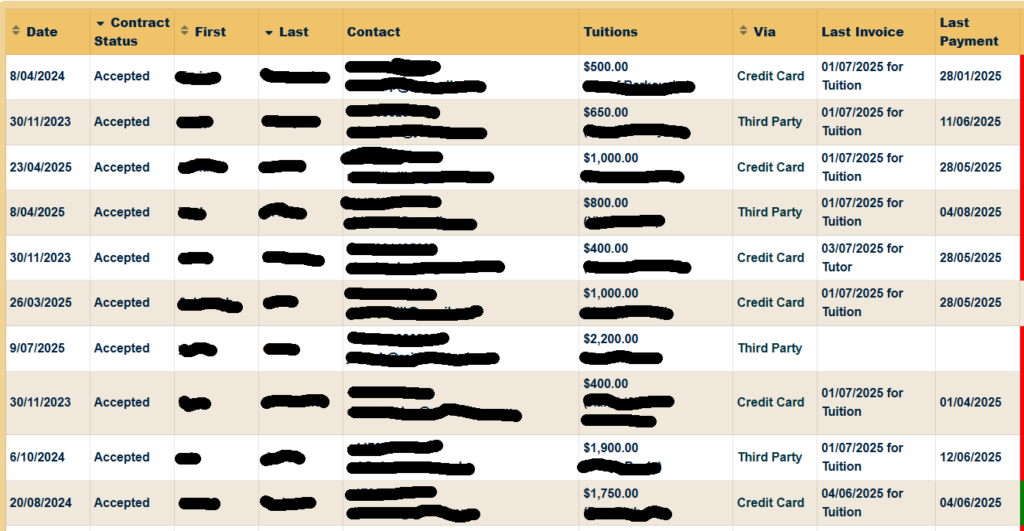
Tuition and invoice table powered by GFSearch to display Gravity Forms entries for student payments
GFSearch used to power the Tuitions, Last Invoice, and Last Payment columns in a student payment table.
Sidebar displaying enrolled programs using GFSearch to display Gravity Forms entries for user dashboards
Sidebar list of programs shown to the user, pulled via GFSearch.
Donor emails and amounts displayed using GFSearch inside a collapsible section powered by Gravity Forms entries
GFSearch displays donor emails and amounts inside a collapsible accordion view.
In the dashboard displaying gravity forms entries representing program information
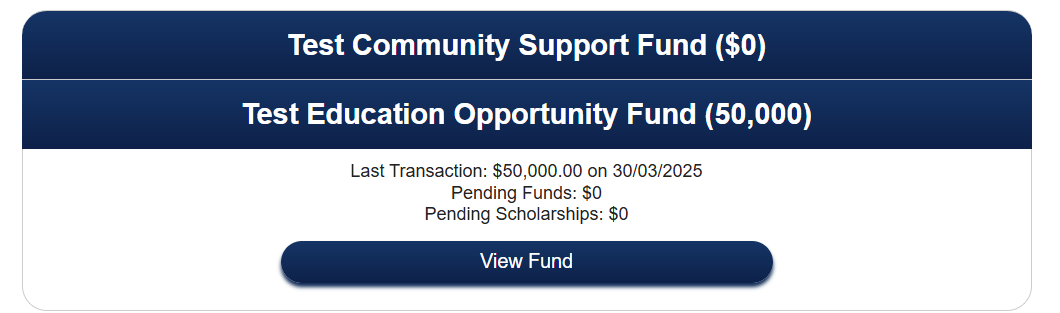
Another section of the accordion, powered by nested GFSearch shortcodes showing latest transactions and pending fund data.
zoomed in version of above
Zoomed in version of above. Showing a nested GFSearch displaying the last transaction in the program.

Custom Gravity Flow Inbox: Surface pending entries in a user’s inbox using GFSearch, tailored to their role or assigned steps. (More on this in our next blog post!)

Once you get started, you’ll discover a wide range of creative, unexpected ways to surface and present your Gravity Forms data—just like we did.

GFSearch vs GravityView

We love GravityView—and use it too. But GFSearch fills a different need:

GFSearchGravityView
Shortcode-basedGUI-based
Works anywherePage-builder focused
Highly customizable outputEasy tables and layouts
Best for specific lookups or widgetsBest for full-table displays

You can even combine them: we often use GFSearch inside GravityView templates.

How to Get Started

GFSearch is available as a free snippet—check it out on GitHub or explore it on our Code Library.

  • Follow the setup instructions and examples
  • Drop the shortcode anywhere on your site (pages, Elementor, blocks, etc.)

You’ll be building your own dashboards in minutes.

What’s Next

We’re working on some exciting improvements:

  • Visual shortcode builder or Gutenberg block
  • Option to export or print results
  • Live-update support
  • Support for searching and displaying different fields from different forms

Have ideas or feedback? We’d love to hear from you.

Final Thoughts

GFSearch gives you complete control over how you display Gravity Forms entries anywhere on your site. No third-party logins, no admin digging—just the right data, in the right place, at the right time.

Give it a try today. It’s the simplest way to make your form entries come alive on your site.

GravityOps Search – Search and Display Gravity Forms Entries
Version 1.0.1 Requires WP 6.5 Requires PHP 8.0 135+ downloads Last updated November 26, 2025

Search Gravity Forms entries on the front end and display matching results anywhere. Filter by any field value. Output custom formatted data.

GravityOps Search is a free, powerful shortcode for searching Gravity Forms entries on the front end and displaying the matching results anywhere on your site. Instead of paging through the admin entries screen, you can drop a single shortcode into a page, post, GravityView, or custom template and surface exactly the data you need. It works like an Excel-style lookup for Gravity Forms entries: you define which forms and fields to search, how to compare the values, and what to output for each match.

The core [gravops_search] shortcode lets you target one form, several forms, or even all forms at once. You can filter by one field or many, pass in values directly in the shortcode content, and control whether entries must match all conditions or any of them. The same shortcode can handle simple lookups (showing a single field from the latest matching entry) or more complex reporting-style views that combine fields, entry properties, and custom HTML. Because everything is driven by attributes, you stay in full control of which entries are included and how their data appears on the front end.

Results are rendered through a flexible display attribute, which understands both simple comma-separated field lists and advanced custom display strings with placeholders. You can output raw values, mix multiple fields into labeled text, or construct HTML lists, tables, and cards with links, CSS classes, and nested shortcodes. This gives you a fully custom front-end listing of Gravity Forms entries that you can drop into any layout, theme, or builder, without building a custom query or touching PHP.

GravityOps Search fully supports Gravity Forms entry properties (such as entry ID, form ID, created-by, and more) alongside regular fields, and it includes options for sorting, limiting, and deduplicating results before they are rendered. You can sort by field values or entry properties, choose ascending, descending, or random ordering, add a secondary sort key, and request unique values only. When no entries match, you can show fallback text or per-field default values, so front-end visitors never see a broken layout or confusing blank output.

This plugin is built explicitly for front-end entry search and display. It does not add live search tools to the Gravity Forms admin area and does not replace the Entries screen. Instead, it focuses on one thing and does it well: querying Gravity Forms entries in the background and printing clean, formatted results on the pages your users actually see.

Features

  • Front-end search for Gravity Forms entries using a single, flexible shortcode.
  • Target all forms, a single form, or a comma-separated list of form IDs using the target attribute.
  • Filter entries by a comma-separated list of field IDs or entry properties via the search attribute.
  • Pass search values in the shortcode content, separated by a pipe (|) to match positions with the fields in search.
  • Choose whether entries must match all search conditions (default) or any condition by setting search_mode=\"any\".
  • Use the operators attribute to control how each value is compared to its field, with support for equals, not-equals, partial matches, SQL-style LIKE, “in” / “not in” arrays, and numeric comparisons (greater than / less than / greater-or-equal / less-or-equal).
  • Display one or many fields and properties for each result using the display attribute, which supports both simple lists and rich custom templates.
  • Include entry properties and field values in your output using placeholder formats like {13}, {id}, {form_id}, and {gos:id} where appropriate.
  • Build fully custom HTML output (lists, tables, cards, badges, buttons, links) directly inside the display string.
  • Insert CSS classes and inline markup into the output so results adopt your theme’s design and layout patterns.
  • Use the separator attribute to control how multiple entry results are separated (including HTML separators or no separator at all using __none__).
  • Sort entries using sort_key, sort_direction, and sort_is_num, with optional secondary_sort_key and secondary_sort_direction for tie-breaking.
  • Limit the number of results returned with limit, including support for limit=\"all\" when you need to show every matching entry.
  • Turn on unique to return only unique result values, great for building deduplicated lists such as unique email addresses, user IDs, or other fields.
  • Search for empty or blank values with the search_empty attribute and an empty shortcode content, to find incomplete or missing data.
  • Provide fallback values when no entries match—or when individual fields are empty—using the default attribute.
  • Add an admin link to each result with the link attribute so power users can jump directly from the front end to the entry in the Gravity Forms admin.
  • Designed to work smoothly alongside GravityView, GravityMath, and other shortcodes that can be nested inside the output.
  • Compatible with the legacy gfsearch snippet approach while offering ongoing updates and a more robust, plugin-based implementation.

How It Works

At its core, GravityOps Search evaluates your shortcode attributes and content to determine which entries to fetch, then formats each matching entry according to the display string you provide. The target attribute defines which forms to query: pass 0 to search all forms, a single form ID to target one form, or a comma-separated list of IDs for multi-form searches. The search attribute specifies the field IDs and entry properties to filter on, and the shortcode content supplies the corresponding values, separated by the pipe (|) character in the same order.

You can configure the search_mode attribute to determine matching logic. The default mode (all) requires each entry to satisfy all conditions, while search_mode=\"any\" returns entries that meet at least one of the conditions listed. This gives you the flexibility to build both strict, multi-field filters and more permissive, keyword-style searches. If you need to perform a global search across all fields for a given value, you can leave the relevant search ID blank, and the plugin will look for that value anywhere in the entry.

Sorting, limiting, and uniqueness are handled after the search conditions are applied. You can specify a sort_key (field ID, entry property, or meta key) with sort_direction set to ASC, DESC, or RAND. If you are sorting by numeric data, sort_is_num ensures values are compared correctly rather than as plain strings. When you need a consistent secondary ordering—such as sorting first by date and then by name—you can use secondary_sort_key and secondary_sort_direction. Once ordered, the plugin applies the limit attribute to control how many entries are actually returned and optionally filters down to unique results based on the full rendered output when unique is enabled.

Defaults and fallbacks keep your front-end output robust. The default attribute can define text to display when no entries are found or when specific fields are empty, and the plugin can handle multiple default values mapped to multiple display fields. The separator attribute governs how multiple entries are joined, making it easy to build line-separated lists, HTML elements, or table rows. Because each [gravops_search] shortcode runs its own live database query, you can place different instances around your site to build different views of the same underlying Gravity Forms data.

Display and Formatting

The display attribute is the heart of how results are shown. In its simplest form, you can pass a comma-separated list of field IDs or entry properties, such as display=\"13,14,15\". For each matching entry, GravityOps Search outputs those values in order, using sensible default separators between fields and entries. This mode is ideal when you simply need to surface raw values: a quick list of email addresses, a set of IDs, or basic single-column output.

For more control, display supports custom display strings with placeholders. Instead of a list of IDs, you can provide a template like display=\"Name: {13}, Email: {14}\", which will be rendered for each matching entry. Placeholders like {13} insert the value of field 13, while placeholders such as {id} and {form_id} work with entry properties. When you need to reference non-numeric properties or use merge tags in contexts that parse standard tags (such as GravityView content fields, confirmations, or notifications), you can use the special {gos:id} syntax. This gives you a consistent way to assemble complex messages, labels, and markup that incorporate both field data and meta data.

The display attribute also accepts full HTML, including tags, attributes, and CSS classes. You can wrap values in ,, ,, “, or any other markup to build lists, tables, cards, or media objects. Because the separator attribute supports HTML as well, you can structure your markup so that each entry becomes one list item, table row, or card component. This makes it straightforward to integrate entry results into existing sections of your design, matching your theme and layout without a custom PHP query.

Nesting Shortcodes and Advanced Templates

GravityOps Search supports nesting other shortcodes inside the display attribute via a double-curly-brace syntax: {{ ... }}. This means you can embed tools like GravityMath, another gravops_search, or any other shortcode directly inside the output template for each entry. The outer [gravops_search] processes its own placeholders first and then hands the rendered string to the nested shortcodes, allowing you to feed entry values into calculations, secondary lookups, or formatting helpers.

When you nest a second gravops_search inside the display attribute, each shortcode runs its own search and display logic in sequence. The outer shortcode resolves placeholders such as {13} and {gos:id} in its display string, while the nested shortcode uses its own display template and attributes. In nested scenarios where you need to reference placeholder values as input to another shortcode or formula, you can use the gos:id pattern without braces (for example, gos:21) to avoid conflicts with merge-tag parsing. This lets you do things like passing a field value into a GravityMath filter or dynamically controlling filters and IDs inside the nested shortcode configuration.

Because nested shortcodes are fully supported and the plugin respects all standard shortcode attributes, you can construct sophisticated, layered outputs without custom PHP. For example, you can build a front-end summary that uses one [gravops_search] to list matching entries, another to pull related entries, and a GravityMath shortcode to compute totals—all wrapped in your own HTML structure. GravityOps Search handles placeholder substitution and nested processing order so that each piece of your template receives the data it needs at the right time.

Search Operators and Multi-Input Fields

The operators attribute lets you tell GravityOps Search exactly how to compare each search value against its corresponding field or property. You define a comma-separated list of operators that line up with the IDs in the search attribute. Supported operators include equality (= or is), inequality (!=, isnot, is not), partial matches (contains), SQL-style wildcard matches (like), membership tests (in, not in), and numeric comparisons (gt, lt, gt=, lt=). If you provide fewer operators than search fields, remaining fields default to exact matches; extra operators beyond the number of fields are ignored. When you omit operators entirely, all fields use exact matching by default.

For more advanced scenarios, certain operators expect specific value formats. When using in or not in, for example, you can pass a PHP-style array in the shortcode content—such as array(\'item one\',\'item two\',\'item three\')—to test whether the field value appears in that list. This makes it easy to filter entries against multiple acceptable values for a single field without duplicating field IDs. Combined with search_mode, you can express a wide range of conditions: from strict multi-field comparisons to flexible multi-value lists and keyword-style filters.

Multi-input Gravity Forms fields (like Name, Address, and Checkbox fields) are fully supported, but they behave differently for display versus search. When displaying, using the base field ID in a placeholder (e.g., {13}) automatically combines all sub-inputs (such as first name and last name) into a single string separated by spaces. If you need to display a specific sub-input—like first name only—you can use its input ID directly, for example {13.3}. When searching, checkboxes are best handled by searching the base field ID so that changes to individual options or dynamic checkboxes do not break the search. Other multi-input fields (like Name and Address) should be searched using their individual input IDs (e.g., 13.3, 13.6), as searching by the base ID will not work for those types.

Performance and Access Control

Every [gravops_search] shortcode runs a live database query against Gravity Forms entries, so thoughtful usage is important for both performance and privacy. On the performance side, heavy use of limit=\"all\", many nested shortcodes, and large forms with complex conditions can slow down page loads. To keep pages responsive, it is recommended to set a reasonable limit where possible, minimize unnecessary nesting, and consider caching the rendered page output using your preferred caching plugin or server-level caching tools. These simple steps help ensure that even data-heavy views remain fast and reliable.

On the access-control side, the shortcode does not enforce any special permission checks by itself. Anyone who can view the page where the shortcode is placed will be able to see whatever Gravity Forms entry data you choose to display, including potentially sensitive information. To protect private or restricted data, you should place the shortcode inside pages or templates that are protected by membership plugins, password protection, role-based visibility, or other gating mechanisms. This keeps the plugin flexible and focused on data retrieval and formatting, while allowing you to decide how and where to expose entry data based on your site’s security model.

GravityOps Search is designed to be both powerful and predictable: you define the forms, fields, filters, and display template, and the plugin takes care of querying and rendering. Used thoughtfully, it becomes a core tool for building dynamic, entry-driven front-end experiences on top of Gravity Forms, without custom development or complex integrations.

  • Search across Gravity Forms
  • Display results any way you like

Get GravityOps Search

GravityOps Search – Search and Display Gravity Forms Entries
Version 1.0.1 Requires WP 6.5 Requires PHP 8.0 135+ downloads Last updated November 26, 2025

Search Gravity Forms entries on the front end and display matching results anywhere. Filter by any field value. Output custom formatted data.

GravityOps Search is a free, powerful shortcode for searching Gravity Forms entries on the front end and displaying the matching results anywhere on your site. Instead of paging through the admin entries screen, you can drop a single shortcode into a page, post, GravityView, or custom template and surface exactly the data you need. It works like an Excel-style lookup for Gravity Forms entries: you define which forms and fields to search, how to compare the values, and what to output for each match.

The core [gravops_search] shortcode lets you target one form, several forms, or even all forms at once. You can filter by one field or many, pass in values directly in the shortcode content, and control whether entries must match all conditions or any of them. The same shortcode can handle simple lookups (showing a single field from the latest matching entry) or more complex reporting-style views that combine fields, entry properties, and custom HTML. Because everything is driven by attributes, you stay in full control of which entries are included and how their data appears on the front end.

Results are rendered through a flexible display attribute, which understands both simple comma-separated field lists and advanced custom display strings with placeholders. You can output raw values, mix multiple fields into labeled text, or construct HTML lists, tables, and cards with links, CSS classes, and nested shortcodes. This gives you a fully custom front-end listing of Gravity Forms entries that you can drop into any layout, theme, or builder, without building a custom query or touching PHP.

GravityOps Search fully supports Gravity Forms entry properties (such as entry ID, form ID, created-by, and more) alongside regular fields, and it includes options for sorting, limiting, and deduplicating results before they are rendered. You can sort by field values or entry properties, choose ascending, descending, or random ordering, add a secondary sort key, and request unique values only. When no entries match, you can show fallback text or per-field default values, so front-end visitors never see a broken layout or confusing blank output.

This plugin is built explicitly for front-end entry search and display. It does not add live search tools to the Gravity Forms admin area and does not replace the Entries screen. Instead, it focuses on one thing and does it well: querying Gravity Forms entries in the background and printing clean, formatted results on the pages your users actually see.

Features

  • Front-end search for Gravity Forms entries using a single, flexible shortcode.
  • Target all forms, a single form, or a comma-separated list of form IDs using the target attribute.
  • Filter entries by a comma-separated list of field IDs or entry properties via the search attribute.
  • Pass search values in the shortcode content, separated by a pipe (|) to match positions with the fields in search.
  • Choose whether entries must match all search conditions (default) or any condition by setting search_mode=\"any\".
  • Use the operators attribute to control how each value is compared to its field, with support for equals, not-equals, partial matches, SQL-style LIKE, “in” / “not in” arrays, and numeric comparisons (greater than / less than / greater-or-equal / less-or-equal).
  • Display one or many fields and properties for each result using the display attribute, which supports both simple lists and rich custom templates.
  • Include entry properties and field values in your output using placeholder formats like {13}, {id}, {form_id}, and {gos:id} where appropriate.
  • Build fully custom HTML output (lists, tables, cards, badges, buttons, links) directly inside the display string.
  • Insert CSS classes and inline markup into the output so results adopt your theme’s design and layout patterns.
  • Use the separator attribute to control how multiple entry results are separated (including HTML separators or no separator at all using __none__).
  • Sort entries using sort_key, sort_direction, and sort_is_num, with optional secondary_sort_key and secondary_sort_direction for tie-breaking.
  • Limit the number of results returned with limit, including support for limit=\"all\" when you need to show every matching entry.
  • Turn on unique to return only unique result values, great for building deduplicated lists such as unique email addresses, user IDs, or other fields.
  • Search for empty or blank values with the search_empty attribute and an empty shortcode content, to find incomplete or missing data.
  • Provide fallback values when no entries match—or when individual fields are empty—using the default attribute.
  • Add an admin link to each result with the link attribute so power users can jump directly from the front end to the entry in the Gravity Forms admin.
  • Designed to work smoothly alongside GravityView, GravityMath, and other shortcodes that can be nested inside the output.
  • Compatible with the legacy gfsearch snippet approach while offering ongoing updates and a more robust, plugin-based implementation.

How It Works

At its core, GravityOps Search evaluates your shortcode attributes and content to determine which entries to fetch, then formats each matching entry according to the display string you provide. The target attribute defines which forms to query: pass 0 to search all forms, a single form ID to target one form, or a comma-separated list of IDs for multi-form searches. The search attribute specifies the field IDs and entry properties to filter on, and the shortcode content supplies the corresponding values, separated by the pipe (|) character in the same order.

You can configure the search_mode attribute to determine matching logic. The default mode (all) requires each entry to satisfy all conditions, while search_mode=\"any\" returns entries that meet at least one of the conditions listed. This gives you the flexibility to build both strict, multi-field filters and more permissive, keyword-style searches. If you need to perform a global search across all fields for a given value, you can leave the relevant search ID blank, and the plugin will look for that value anywhere in the entry.

Sorting, limiting, and uniqueness are handled after the search conditions are applied. You can specify a sort_key (field ID, entry property, or meta key) with sort_direction set to ASC, DESC, or RAND. If you are sorting by numeric data, sort_is_num ensures values are compared correctly rather than as plain strings. When you need a consistent secondary ordering—such as sorting first by date and then by name—you can use secondary_sort_key and secondary_sort_direction. Once ordered, the plugin applies the limit attribute to control how many entries are actually returned and optionally filters down to unique results based on the full rendered output when unique is enabled.

Defaults and fallbacks keep your front-end output robust. The default attribute can define text to display when no entries are found or when specific fields are empty, and the plugin can handle multiple default values mapped to multiple display fields. The separator attribute governs how multiple entries are joined, making it easy to build line-separated lists, HTML elements, or table rows. Because each [gravops_search] shortcode runs its own live database query, you can place different instances around your site to build different views of the same underlying Gravity Forms data.

Display and Formatting

The display attribute is the heart of how results are shown. In its simplest form, you can pass a comma-separated list of field IDs or entry properties, such as display=\"13,14,15\". For each matching entry, GravityOps Search outputs those values in order, using sensible default separators between fields and entries. This mode is ideal when you simply need to surface raw values: a quick list of email addresses, a set of IDs, or basic single-column output.

For more control, display supports custom display strings with placeholders. Instead of a list of IDs, you can provide a template like display=\"Name: {13}, Email: {14}\", which will be rendered for each matching entry. Placeholders like {13} insert the value of field 13, while placeholders such as {id} and {form_id} work with entry properties. When you need to reference non-numeric properties or use merge tags in contexts that parse standard tags (such as GravityView content fields, confirmations, or notifications), you can use the special {gos:id} syntax. This gives you a consistent way to assemble complex messages, labels, and markup that incorporate both field data and meta data.

The display attribute also accepts full HTML, including tags, attributes, and CSS classes. You can wrap values in ,, ,, “, or any other markup to build lists, tables, cards, or media objects. Because the separator attribute supports HTML as well, you can structure your markup so that each entry becomes one list item, table row, or card component. This makes it straightforward to integrate entry results into existing sections of your design, matching your theme and layout without a custom PHP query.

Nesting Shortcodes and Advanced Templates

GravityOps Search supports nesting other shortcodes inside the display attribute via a double-curly-brace syntax: {{ ... }}. This means you can embed tools like GravityMath, another gravops_search, or any other shortcode directly inside the output template for each entry. The outer [gravops_search] processes its own placeholders first and then hands the rendered string to the nested shortcodes, allowing you to feed entry values into calculations, secondary lookups, or formatting helpers.

When you nest a second gravops_search inside the display attribute, each shortcode runs its own search and display logic in sequence. The outer shortcode resolves placeholders such as {13} and {gos:id} in its display string, while the nested shortcode uses its own display template and attributes. In nested scenarios where you need to reference placeholder values as input to another shortcode or formula, you can use the gos:id pattern without braces (for example, gos:21) to avoid conflicts with merge-tag parsing. This lets you do things like passing a field value into a GravityMath filter or dynamically controlling filters and IDs inside the nested shortcode configuration.

Because nested shortcodes are fully supported and the plugin respects all standard shortcode attributes, you can construct sophisticated, layered outputs without custom PHP. For example, you can build a front-end summary that uses one [gravops_search] to list matching entries, another to pull related entries, and a GravityMath shortcode to compute totals—all wrapped in your own HTML structure. GravityOps Search handles placeholder substitution and nested processing order so that each piece of your template receives the data it needs at the right time.

Search Operators and Multi-Input Fields

The operators attribute lets you tell GravityOps Search exactly how to compare each search value against its corresponding field or property. You define a comma-separated list of operators that line up with the IDs in the search attribute. Supported operators include equality (= or is), inequality (!=, isnot, is not), partial matches (contains), SQL-style wildcard matches (like), membership tests (in, not in), and numeric comparisons (gt, lt, gt=, lt=). If you provide fewer operators than search fields, remaining fields default to exact matches; extra operators beyond the number of fields are ignored. When you omit operators entirely, all fields use exact matching by default.

For more advanced scenarios, certain operators expect specific value formats. When using in or not in, for example, you can pass a PHP-style array in the shortcode content—such as array(\'item one\',\'item two\',\'item three\')—to test whether the field value appears in that list. This makes it easy to filter entries against multiple acceptable values for a single field without duplicating field IDs. Combined with search_mode, you can express a wide range of conditions: from strict multi-field comparisons to flexible multi-value lists and keyword-style filters.

Multi-input Gravity Forms fields (like Name, Address, and Checkbox fields) are fully supported, but they behave differently for display versus search. When displaying, using the base field ID in a placeholder (e.g., {13}) automatically combines all sub-inputs (such as first name and last name) into a single string separated by spaces. If you need to display a specific sub-input—like first name only—you can use its input ID directly, for example {13.3}. When searching, checkboxes are best handled by searching the base field ID so that changes to individual options or dynamic checkboxes do not break the search. Other multi-input fields (like Name and Address) should be searched using their individual input IDs (e.g., 13.3, 13.6), as searching by the base ID will not work for those types.

Performance and Access Control

Every [gravops_search] shortcode runs a live database query against Gravity Forms entries, so thoughtful usage is important for both performance and privacy. On the performance side, heavy use of limit=\"all\", many nested shortcodes, and large forms with complex conditions can slow down page loads. To keep pages responsive, it is recommended to set a reasonable limit where possible, minimize unnecessary nesting, and consider caching the rendered page output using your preferred caching plugin or server-level caching tools. These simple steps help ensure that even data-heavy views remain fast and reliable.

On the access-control side, the shortcode does not enforce any special permission checks by itself. Anyone who can view the page where the shortcode is placed will be able to see whatever Gravity Forms entry data you choose to display, including potentially sensitive information. To protect private or restricted data, you should place the shortcode inside pages or templates that are protected by membership plugins, password protection, role-based visibility, or other gating mechanisms. This keeps the plugin flexible and focused on data retrieval and formatting, while allowing you to decide how and where to expose entry data based on your site’s security model.

GravityOps Search is designed to be both powerful and predictable: you define the forms, fields, filters, and display template, and the plugin takes care of querying and rendering. Used thoughtfully, it becomes a core tool for building dynamic, entry-driven front-end experiences on top of Gravity Forms, without custom development or complex integrations.

  • Search across Gravity Forms
  • Display results any way you like